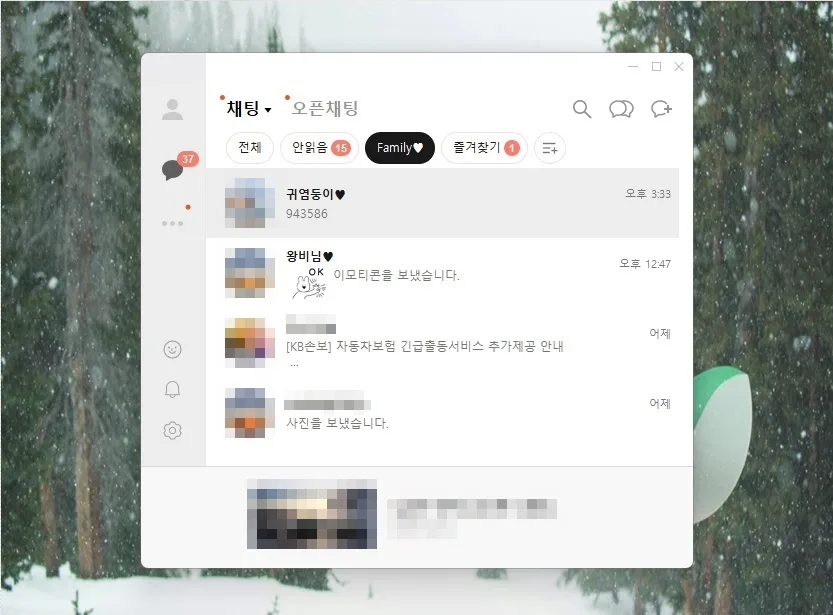
If your KakaoTalk chat list feels overwhelming and you're missing important messages, you can streamline your chat management with the latest KakaoTalk folder features and open chat separation settings for 2026. For PC users, a specific setting is required, and utilizing the 'Unread Messages' tab alongside the folder function offers enhanced convenience.
How to Separate Open Chat Rooms in PC KakaoTalk?
To separate open chat rooms from your regular chats on the PC version of KakaoTalk, you'll need to adjust a specific setting. First, launch KakaoTalk on your PC and click the gear icon in the bottom left corner to access the 'Settings' menu. Within the settings, navigate to the 'Chat' tab and check the box for 'Separate Open Chat List.' Once this setting is applied, your chat list will display 'Regular Chats' and 'Open Chats' separately at the top, allowing for more organized management of each chat type. This feature significantly declutters your conversation list, reducing the chances of missing crucial messages.
What's the Best Way to Manage Unread Messages?
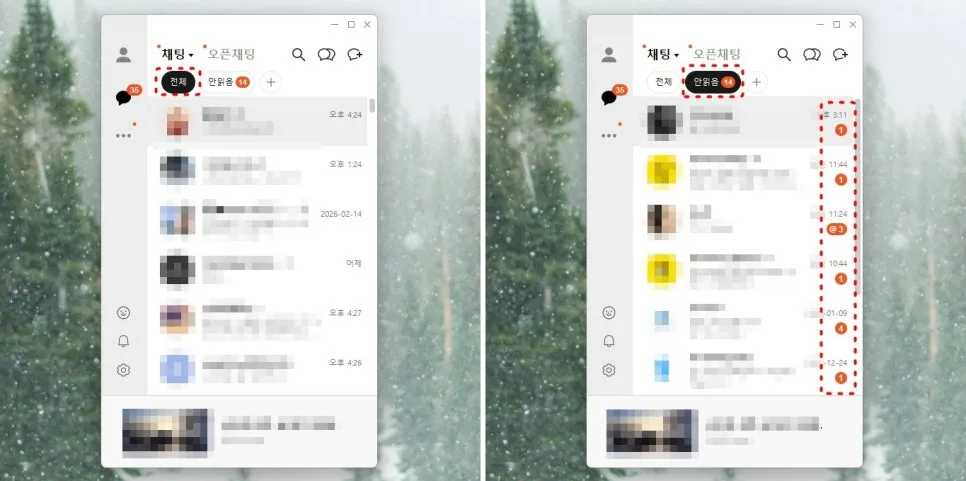
If you frequently miss KakaoTalk messages, actively using the 'Unread' feature is highly recommended. By default, KakaoTalk sorts chats by recent activity, meaning older conversations can easily get buried. However, by tapping the 'Unread' tab located at the top of your 'Regular Chats' list, you can view all unread conversations in one place. This makes it easy to catch up on missed messages, especially for important work announcements or critical information. Keep in mind that this 'Unread' tab functionality is exclusively for regular chats and does not apply to open chat rooms.
How Can I Organize Chats Using KakaoTalk Folders?
While some recent KakaoTalk updates have been met with mixed reactions, the 'KakaoTalk Folder' feature has been a hit among many users, especially those with a large number of conversations. Creating a folder is straightforward: tap the '+' button in the top menu, select 'Create Folder,' enter your desired folder name, and then choose 'Add Chat Room.' From your chat list, select the conversations you want to include in the folder and tap 'Confirm.' For instance, creating a 'Family' folder will group all family-related chats, making them easily accessible. You can also leverage the default 'Favorites' folder to manage lists of frequently contacted friends or work partners, allowing quick access to those you don't contact daily but need to reach efficiently.
How Do I Delete or Modify KakaoTalk Folders?
Modifying or deleting your created KakaoTalk folders is also a simple process. Navigate to the folder management menu, and tap the pencil icon to add or remove chat rooms from an existing folder. To delete a folder entirely, simply tap the trash can icon. Importantly, deleting a folder does not remove the chat rooms within it; they will remain in your main chat list. This allows you to freely manage your folders without losing your conversations. If your general chat list feels too crowded and you often miss important messages, consider implementing the 'Unread' feature and the 'KakaoTalk Folder' system we've discussed today.
For more details, check the original source below.