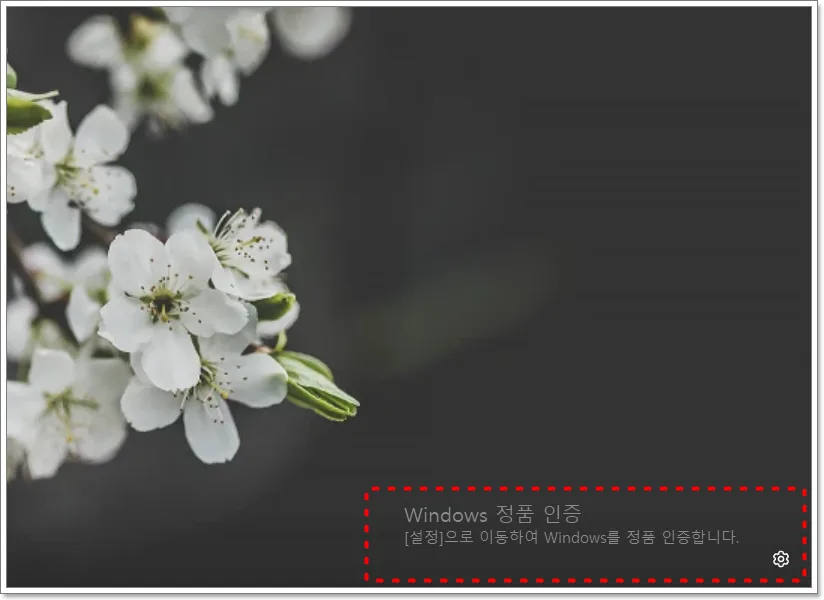
Annoyed by the Windows activation watermark? While you can temporarily remove it using Command Prompt (CMD) commands, it's crucial to understand this is a temporary fix. The only permanent solution is purchasing and activating a genuine Windows license. This guide explains the temporary CMD method for users who need to hide the watermark for immediate use.
Why Does the Windows Activation Watermark Appear?
Windows allows basic functionality even without a genuine license. However, the persistent 'Activate Windows' watermark in the bottom-right corner can be distracting. This watermark typically appears after a fresh Windows installation, if activation information gets reset after a major update, or if your license has expired. Based on my experience, this watermark serves as a clear notification that your current Windows copy is not officially activated.
How to Temporarily Remove the Windows Watermark with CMD
If you just want to hide the watermark temporarily, using Command Prompt (CMD) is an effective method. Remember, this is a workaround to allow unrestricted use of Windows features and does not replace legitimate activation. First, open Command Prompt by searching for 'cmd' in the Windows search bar and selecting 'Run as administrator.' Running it with administrator privileges is essential for the commands to execute properly. In my testing, failing to run as administrator often results in command execution errors.
Step-by-Step CMD Commands for Windows Activation
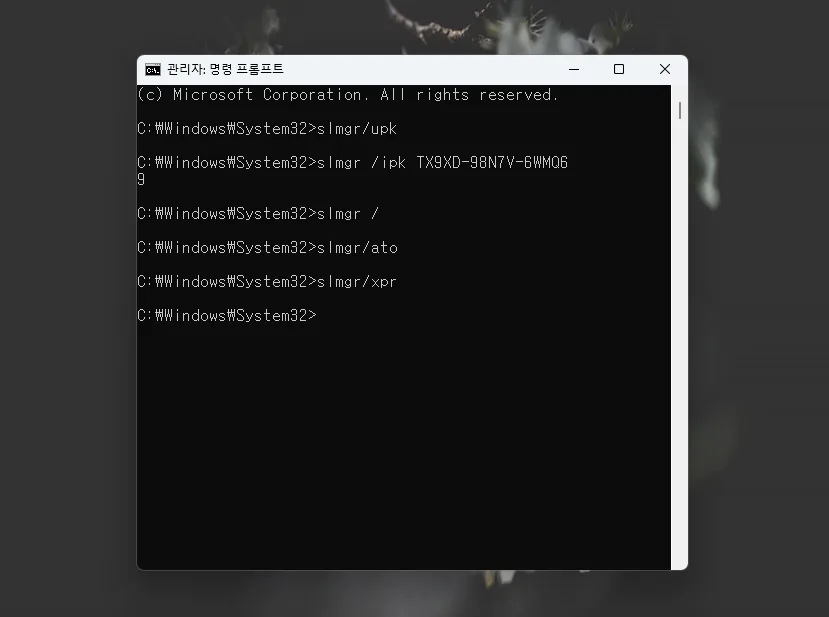
Once the Command Prompt window is open, follow these steps sequentially. First, to prevent product key conflicts, enter the command `slmgr /upk` to uninstall the current product key. A confirmation pop-up stating 'Uninstalled product key successfully' should appear; click OK. Second, input a product key appropriate for your Windows version. For 'Windows 10/11 Pro,' use `slmgr /ipk W269N-WFGWX-YVC9B-4J6C9-T83GX`. For 'Windows 10/11 Home,' use `slmgr /ipk TX9XD-98N7V-6WMQ6-BX7FG-H8Q99`. After entering the key, a pop-up confirming the key installation should appear before proceeding. You can verify your Windows edition by pressing Win + I, navigating to Settings > System > About, and checking the 'Edition' under 'Windows specifications.'
How to Enter Activation Server Address and Retry Online Activation
Third, enter the KMS activation server address. Type `slmgr /skms kms8.msguides.com` and press Enter. You should see a message confirming that the key management service computer name has been set successfully. Fourth, to retry online activation, enter either `slmgr /ato` or `slmgr /rearm`. The `slmgr /rearm` command might have usage limitations and may require a system reboot. If successful, you should receive a confirmation pop-up stating 'Product activated successfully,' and the watermark will be removed. Based on my trials, the success rate can vary depending on your network environment.
How to Check Windows Activation Status and Important Warnings
After executing the commands, you can verify your Windows activation status by typing `slmgr /xpr` into the Command Prompt. If activation was successful, it will display 'The machine is permanently activated.' However, if you used a temporary license key, it will show an expiration date. It's crucial to understand that this CMD method is a temporary workaround, not a permanent solution. The watermark may reappear after a certain period or upon system updates. For stable and legitimate use of Windows, purchasing a genuine license is the only reliable method. Incorrect commands can also lead to system errors, so proceed with caution.
For more details, check the original source below.