Changing your iPhone's name is a simple process that customizes how your device appears to others when using features like Bluetooth and AirDrop. This personal touch not only helps you easily identify your own devices among many but also enhances your privacy by allowing you to set a unique, non-identifying name, especially useful in public spaces. It's a quick setting that makes managing your Apple ecosystem more seamless.
Why Change Your iPhone's Bluetooth & AirDrop Name?
In public places like coffee shops or on public transport, your iPhone's name can be visible to others when using AirDrop. By default, it might show up as simply 'iPhone' or a name you previously set. This can be a privacy concern, as it might inadvertently reveal personal information. Furthermore, if you manage multiple iPhones or other Apple devices, distinguishing between them can become challenging. I personally recall a time when I was using AirDrop in a crowded area, and my name was clearly visible to everyone nearby, which felt quite awkward. Customizing your iPhone's name addresses these issues, enhancing privacy and making device management significantly easier. This personalized name also applies to Bluetooth connections, helping you quickly spot your iPhone in a list of available devices.
How to Change Your iPhone Name: Step-by-Step Setup
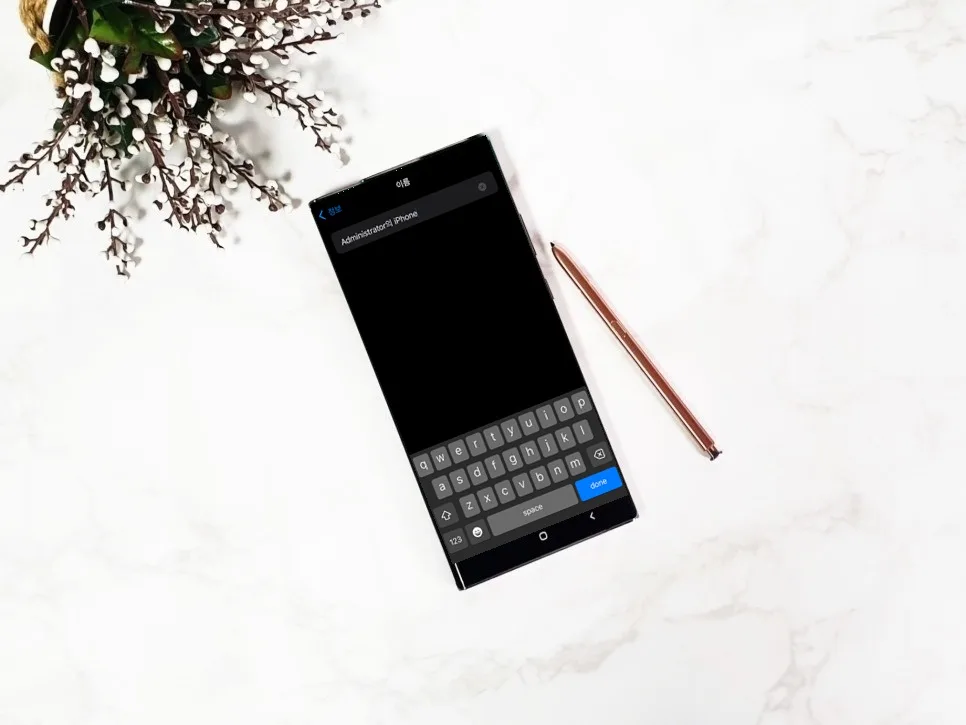
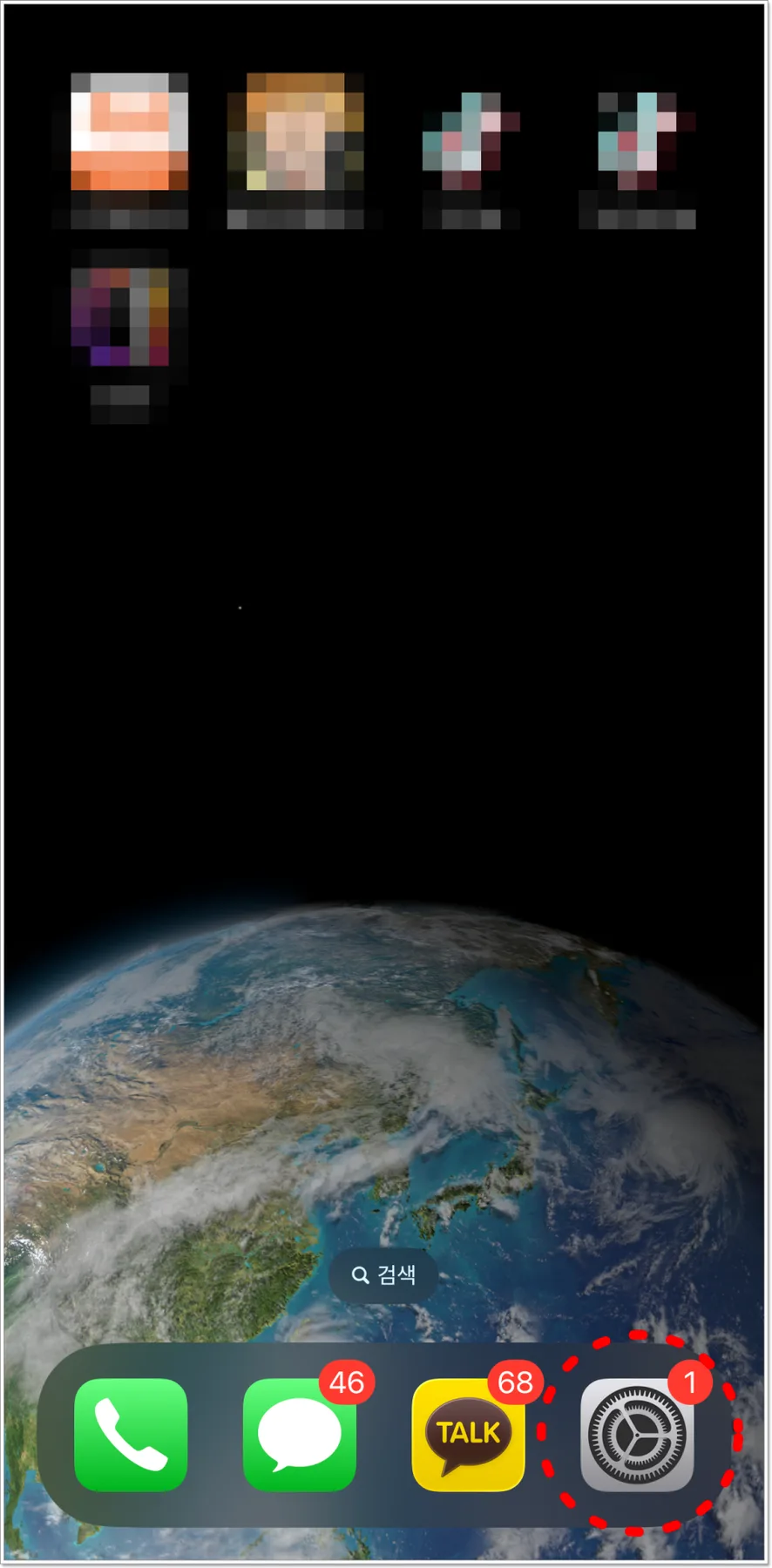
Modifying your iPhone's name is a straightforward process. Begin by tapping the 'Settings' app icon, which looks like a gear, on your home screen. Once inside the Settings menu, scroll down and select 'General'. The General settings screen allows you to manage various system-level configurations for your iPhone, including software updates, language, and AirDrop. Within this menu, tap on 'About'. Here, you'll see your device's information, including its model and software version. At the very top, you'll find the 'Name' field. Tap on it, delete the current name, and type in your desired new name. Finally, tap 'Done' in the upper-right corner to save your changes. This new name will be applied instantly across your device. You can even use emojis to give your iPhone a unique and personalized identifier.
Where Does the iPhone Name Change Apply?
When you change your iPhone's name, this setting isn't limited to just Bluetooth or AirDrop. The updated name is applied universally across your Apple ecosystem. This includes how your device appears when syncing with iCloud, when others connect to your Personal Hotspot, and how it's identified when connected to a computer (Mac or Windows PC) via iTunes or Finder. Essentially, any connection or synchronization process involving your iPhone will now use the custom name you've set. For instance, when you connect your iPhone to your MacBook, instead of seeing a generic 'iPhone' or an old name, you'll see your personalized identifier, such as 'Sarah's iPhone 15 Pro' or 'TechGadget'. This is incredibly useful if you own multiple Apple devices or share them with family members, ensuring clear identification at all times.
Important Considerations for Changing Your iPhone Name
While changing your iPhone name is simple, there are a few points to keep in mind. Firstly, avoid using excessively long names or names filled with special characters, as these can sometimes cause display issues or errors on certain devices or services. Opting for a concise and clear name is generally best. Secondly, if you frequently use AirDrop in public, consider choosing a name that doesn't reveal personal information. Instead of your actual name, you might opt for a device model, like 'iPhone 15 Pro', or a generic nickname. This helps protect your privacy. Lastly, remember that any name change is synchronized immediately across all your devices and services. Therefore, think carefully before making the change to ensure it suits your needs for both privacy and easy device management. Finding a balance between personalization and discretion is key.
Enhance your device management and privacy by customizing your iPhone name.