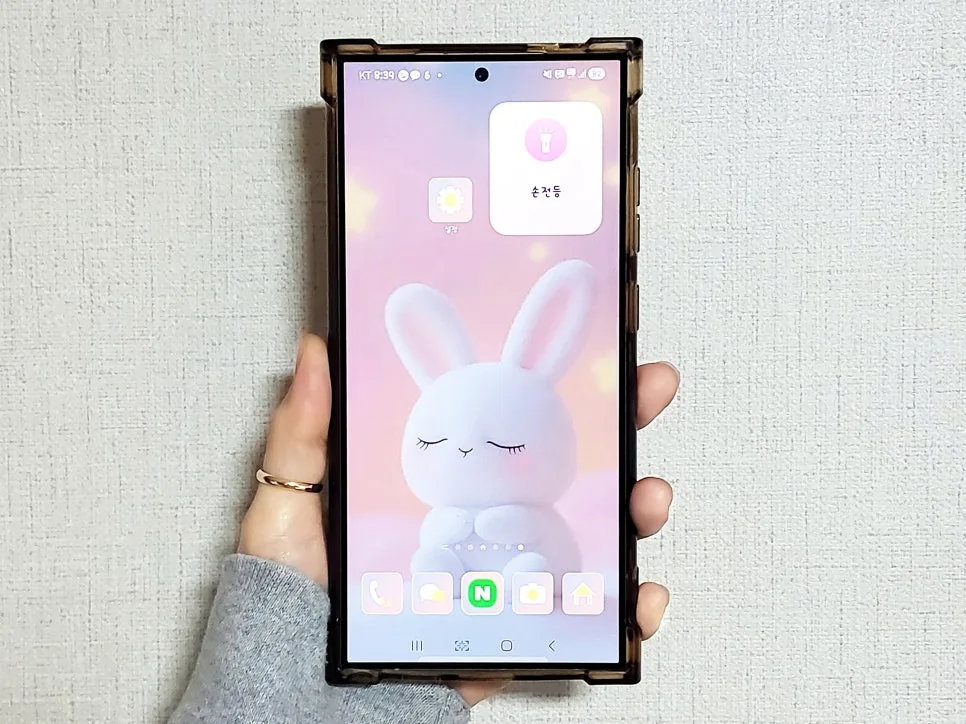
Adding a Galaxy flashlight widget to your home screen offers instant access, eliminating the need for separate apps or swiping down the notification panel. The setup involves using the 'Modes and Routines' feature to create a custom routine that controls the flashlight, followed by adding this routine as a widget. This allows for one-tap control, making it incredibly convenient for quick illumination needs.
How to Set Up Your Galaxy Flashlight Widget Using 'Modes and Routines'
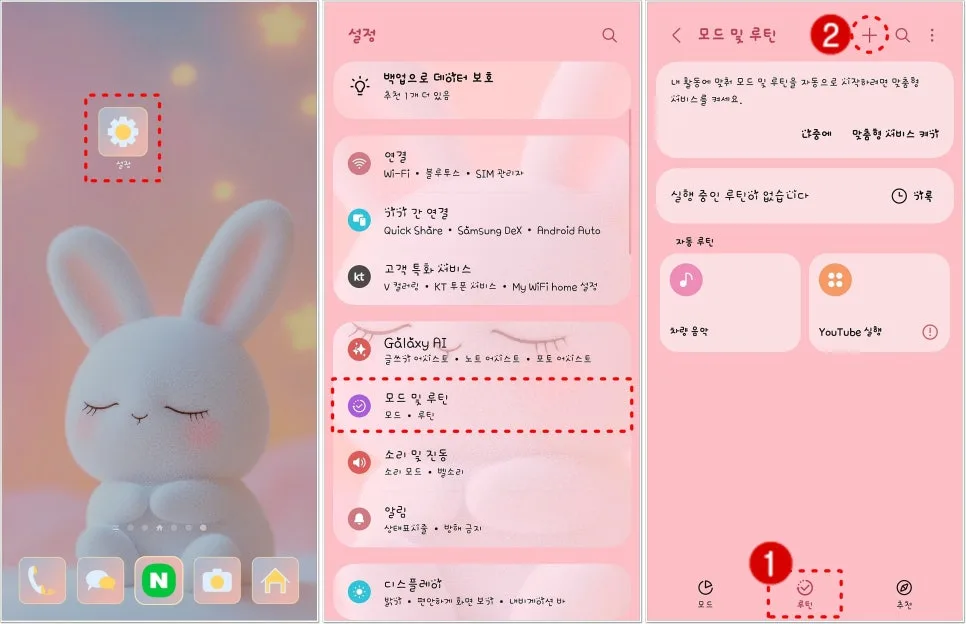
If you frequently use your Samsung Galaxy's flashlight but find swiping down the notification panel cumbersome, creating a home screen widget via 'Modes and Routines' is a game-changer. Based on my own experience, this method is straightforward and bypasses the need to download any third-party applications. To begin, open your phone's Settings app (the gear icon). Scroll down and tap on 'Modes and Routines.' You'll likely see the 'Modes' tab by default; switch to the 'Routines' tab at the bottom, then tap the '+' icon in the top right corner to start creating a new routine. This process allows you to fully customize your flashlight widget.
Creating a 'Manual Routine' for Your Flashlight Widget
In the routine creation screen, the first step is to tap 'Add condition.' From the various execution options, select 'Manually run.' This ensures the flashlight only activates when you explicitly tap the widget, preventing accidental activation and conserving battery life. Once the condition is set, tap 'Add action' under the 'What will this routine do?' section. Search for 'Flashlight' or find it in the list, then select it. In the pop-up window, choose 'Turn on' to add the flashlight activation action to your routine. Completing this step prepares your routine to turn on the flashlight.
How to Set Up the 'Turn Off Flashlight' Action for Routine Exit
To ensure you can turn the flashlight off just as easily, you need to configure the exit action. After adding the 'Turn on flashlight' action, look for the 'When routine ends' menu. Tap this and select 'Set custom action.' Choose the 'Turn off' option and tap 'Done.' This configures the widget to turn the flashlight off when you tap it again. Having both the 'turn on' and 'turn off' actions set up allows for complete control of the flashlight directly from the widget.
Finalizing Your Galaxy Flashlight Widget on the Home Screen
Once all settings are configured, tap the 'Save' button to finalize your 'Turn on flashlight' routine. You can then customize the widget's color and icon before tapping 'Done' to complete the widget creation process. Navigate back to your 'Manual Routines' list and find the 'Turn on flashlight' routine you just created. Tap the three-dot menu in the top right corner and select 'Set as widget.' A 'Add to Home screen' prompt will appear; tap 'Add' or long-press the icon and drag it to your desired location on the home screen. Your widget is now registered, offering instant flashlight access without needing to pull down the notification bar.
Customizing Your Galaxy Flashlight Widget's Appearance
You can further personalize your flashlight widget by adjusting its appearance. After adding it to your home screen, long-press the widget. This will bring up a settings menu where you can modify the widget's shape, background color, and transparency. This customization allows you to match the widget's aesthetic with your overall home screen theme or simply make it stand out according to your preferences.