Galaxy emergency alert settings allow you to easily customize or disable notifications for critical alerts, missing person alerts, and safety information. You can choose which alerts to receive and adjust repeat notification settings to minimize disruption while staying informed.
How to Turn Off or Customize Galaxy Emergency Alerts

Ever been startled by a sudden, loud emergency alert on your Samsung Galaxy phone? Whether you're in an important meeting or deep asleep, these alerts can be jarring. Fortunately, Galaxy phones offer robust customization options for these critical notifications. To start, open the default 'Messages' app. Tap the three-dot menu in the top right corner and select 'Settings.' On the message settings screen, find and tap 'Emergency alerts.' Here, you can toggle off 'Allow alerts' to disable all notifications, including critical alerts, missing person alerts, and safety information. This setting controls various types of messages, such as warnings for natural disasters, information about missing persons, and safety instructions.
How to Stop Repeat Emergency Alert Notifications on Galaxy
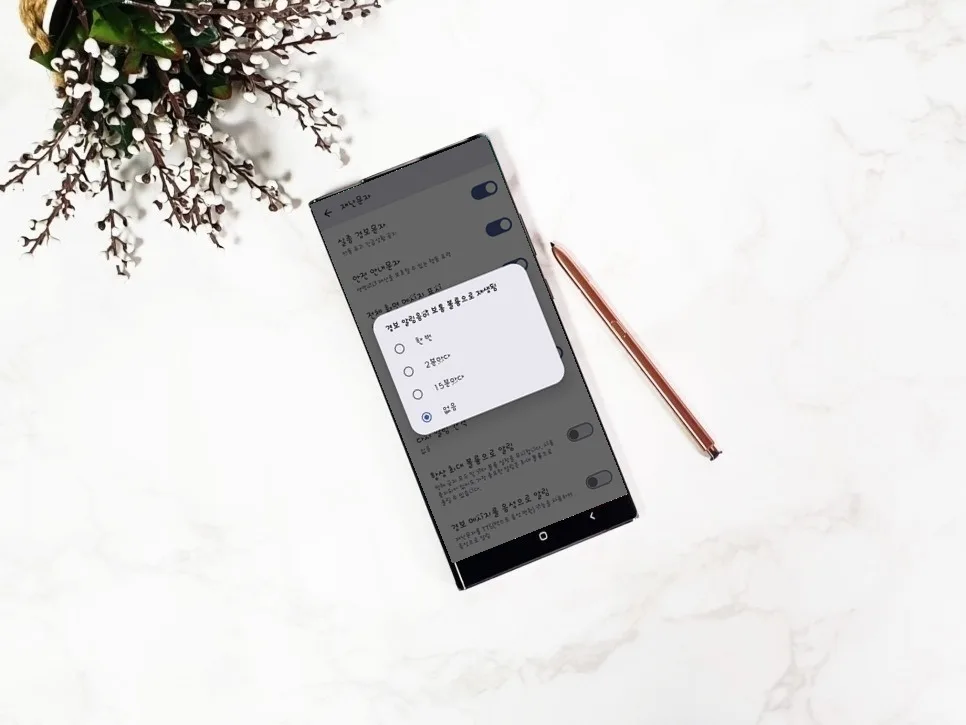
If you've missed an emergency alert and find the repeated notifications disruptive, you can easily manage this. Within the emergency alert settings menu, locate the 'Repeat alert interval' option. By selecting 'None,' you can prevent the alert from sounding again. This feature helps you stay informed without being constantly interrupted by repeated alerts, allowing you to manage notifications according to your preferences and daily routine. It's crucial to find a balance that keeps you informed during emergencies without causing unnecessary stress.
Can You Customize Earthquake Alerts on Your Galaxy Phone?
Yes, your Samsung Galaxy phone allows you to specifically manage earthquake alerts. Navigate to the main 'Settings' app on your device and select 'Safety and emergency.' Within this section, you'll find the 'Emergency alerts' settings, where you can toggle 'Earthquake alerts' on or off independently. Enabling this feature can provide you with information about estimated earthquake magnitudes and distances when they occur near your location, allowing for a quicker response. However, it's important to note that this feature's availability and functionality may vary by region, and it might not be supported in all areas. Always check if earthquake alerts are supported in your specific location.
Why Galaxy Emergency Alert Settings Matter & What to Watch Out For
While emergency alerts can sometimes feel intrusive, they are vital for your safety during critical events. Instead of disabling all alerts, consider customizing them to suit your needs. You can selectively enable or disable specific alert types like critical alerts, missing person alerts, safety information, and earthquake alerts based on your personal circumstances and location. This personalized approach ensures you receive the most relevant information without unnecessary disturbances. Setting up your alerts thoughtfully can create an optimized notification environment, providing peace of mind and ensuring you're prepared for emergencies.
For more details, check the original source below.