Learn the quickest ways to check your PC's CPU, RAM, and other specifications without installing any software, using simple keyboard shortcuts. This is essential for troubleshooting slow performance, identifying upgrade needs, and ensuring compatibility for demanding applications like gaming or video editing in 2026.
Why You Need to Know Your PC Specs
Experiencing a sluggish PC or struggling to run your favorite games and software? Understanding your computer's core specifications – primarily its CPU (Central Processing Unit) and RAM (Random Access Memory) – is crucial. This knowledge empowers you to make informed decisions about hardware upgrades, troubleshoot performance bottlenecks, and determine what tasks your current system can realistically handle. For instance, if you're a gamer or a video editor, knowing your GPU (Graphics Processing Unit) and RAM capacity is vital for smooth operation. We'll guide you through the easiest and fastest methods to find this information using built-in Windows tools and handy keyboard shortcuts, no extra downloads required.
How to Check CPU and RAM in Windows Settings
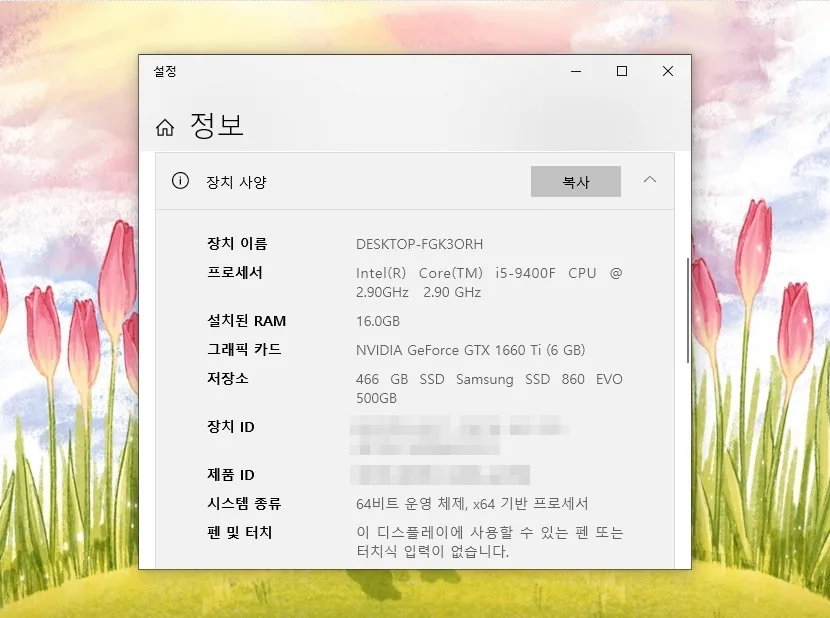
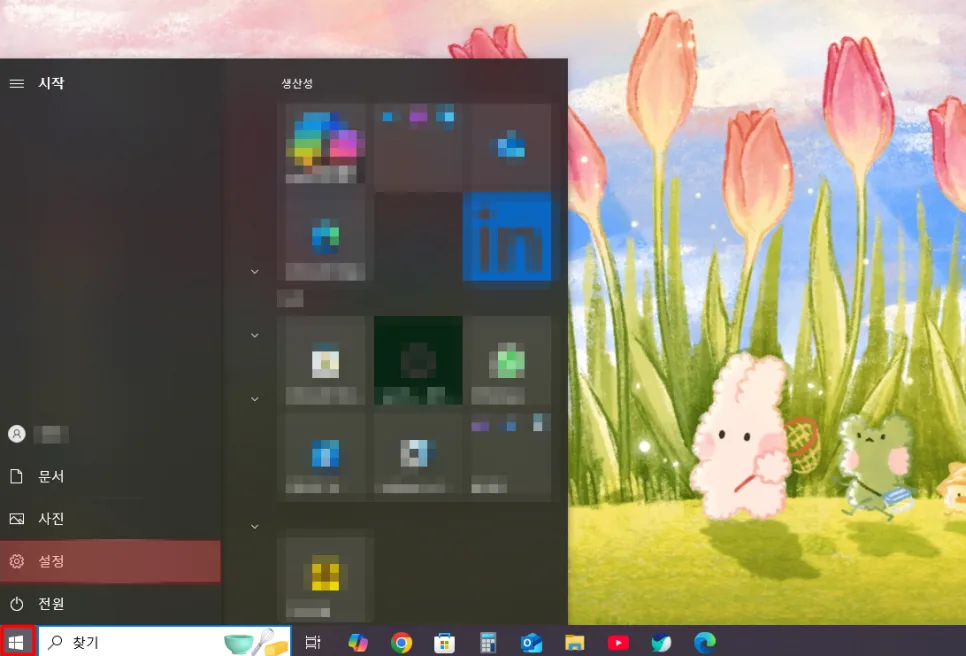
The most straightforward method to find your basic PC specs is through the Windows Settings menu. Start by clicking the Windows Start button, usually found in the bottom-left corner of your screen, and then select the 'Settings' gear icon. Once the Settings window opens, navigate to the 'System' category. On the left-hand menu, click on 'About'. Here, you'll find a comprehensive overview of your hardware, including your processor (CPU), installed RAM, and system type (32-bit or 64-bit). Look for the 'Installed RAM' entry to see your current memory capacity. For general use and multitasking, 16GB of RAM is often sufficient, but demanding applications like AAA gaming or professional video editing might benefit from 32GB or more.
Using Task Manager for Real-Time CPU and RAM Usage
For a more detailed look at your hardware's performance and real-time usage, the Task Manager is your best friend. The quickest way to open it is by pressing the keyboard shortcut [Ctrl] + [Shift] + [Esc] simultaneously. Alternatively, you can press [Ctrl] + [Alt] + [Del] and select 'Task Manager' from the menu. Once the Task Manager window appears, click on the 'Performance' tab. This section provides live data on your CPU, Memory (RAM), Disk, and Network usage. If your CPU usage is consistently near 100%, it's a strong indicator of a performance issue, often caused by resource-hungry applications. The 'Performance' tab also displays your RAM type (e.g., DDR4) and speed, which is helpful information if you're considering an upgrade. Furthermore, the 'Processes' tab within Task Manager allows you to see which specific applications are consuming the most CPU and RAM, enabling you to close unnecessary programs and improve your PC's responsiveness.
Checking Graphics Card (GPU) Info with dxdiag
Your graphics card (GPU) is critical for gaming, 3D rendering, and video editing. A simple way to find its specifications is by using the 'dxdiag' command. Press the Windows key and type 'dxdiag' into the search bar, then press Enter to launch the 'DirectX Diagnostic Tool'. Once the tool opens, navigate to the 'Display' tab. Here, you'll find detailed information about your graphics card, including its model name, manufacturer, and dedicated video memory (VRAM). This information is essential for determining if your PC can run specific games or handle graphically intensive tasks. Knowing your exact specs helps you avoid unnecessary hardware purchases and ensures your system is optimized for your needs.
For more details, check the original source below.