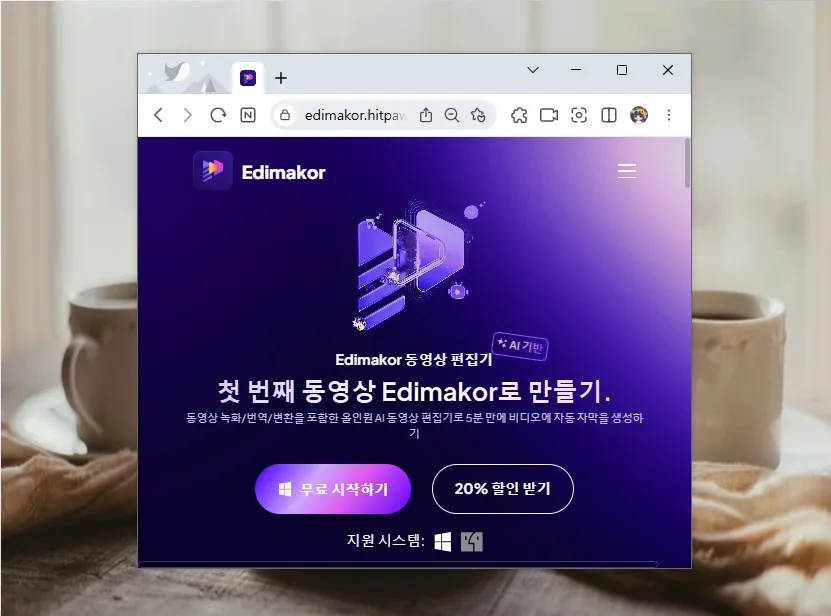
In 2026, adding subtitles to your videos is easier than ever with AI-powered tools like HitPaw Edimakor. This software can automatically generate, translate, and style subtitles with just a few clicks, dramatically cutting down video production time and allowing you to create professional-looking captions effortlessly.
Why Are AI Video Subtitles Essential for US Creators?
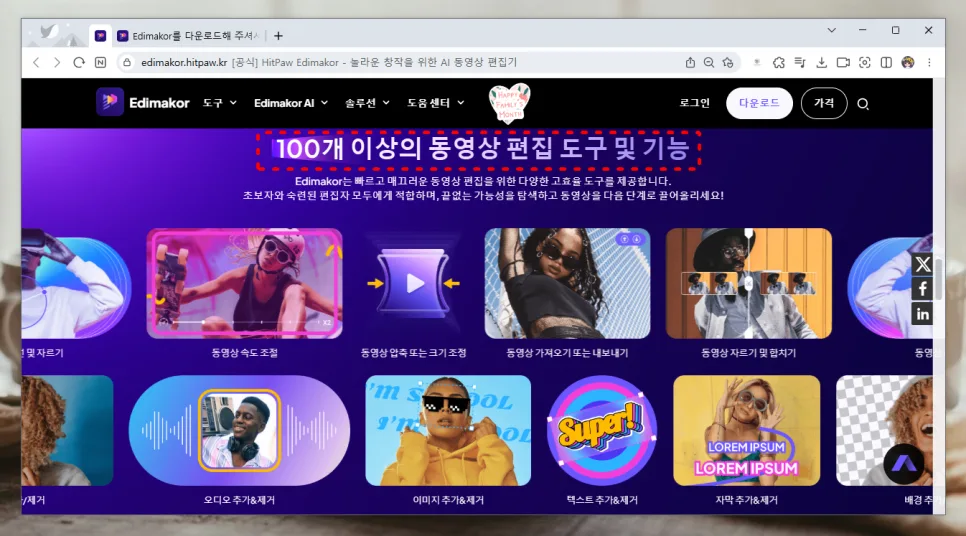
With the explosion of short-form content on platforms like YouTube Shorts, Instagram Reels, and TikTok, video creation is booming. However, one of the most time-consuming aspects of video editing is adding subtitles. Fortunately, advancements in AI speech recognition have made automatic subtitle generation a reality, significantly lowering the barrier to entry for creators. AI-generated subtitles not only save you the tedious task of typing out every word but also make your content accessible to a wider audience, including those who are deaf or hard of hearing, or who prefer to watch videos with the sound off. They play a crucial role in clearly conveying your message and keeping viewers engaged.
Mastering AI Subtitle Generation with HitPaw Edimakor
HitPaw Edimakor is a powerful video editing software packed with AI-driven features, and its automatic subtitle generation is a standout. To get started, launch the program, create a new project, and import your video. Once the video is on the timeline, navigate to the top menu and click the '[▶] A+' icon, then select 'Automatically Identify Subtitles.' The AI will then analyze the audio in your video and generate subtitles automatically. This process typically takes just a few minutes, and the subtitles are accurately placed on the timeline, synced with the spoken words. In my testing, for videos with clear audio in a standard environment, the accuracy rate exceeded 90%, often requiring minimal to no post-generation edits.
Enhance Your Videos with AI Subtitle Translation and Styling
Another impressive feature of HitPaw Edimakor is its AI-powered subtitle translation. By activating the 'Translation Language' section and selecting your desired language, you can automatically translate Korean subtitles into various foreign languages or convert foreign language videos into Korean subtitles. This is incredibly useful if you're targeting an international audience or incorporating foreign-language clips. Furthermore, the 'Style' tab offers a wide array of design templates to match your video's aesthetic. You can also fine-tune font type, size, color, position, background, and borders in the 'Text' tab, allowing you to create custom, highly readable subtitles with ease.
Editing and Refining AI-Generated Subtitles
Even the best AI can sometimes miss the mark, especially with poor audio quality, background noise, or uncommon words. If an AI-generated subtitle isn't perfect, you can easily edit it directly. Simply click on the subtitle you wish to modify. You can also click the '+' button next to a sentence to open a new text field, allowing you to add missing words or correct errors. If a subtitle is too long or too short for the spoken segment, you can adjust its duration by dragging the edges, similar to how you would with media files on the timeline. These user-friendly editing options ensure your subtitles are accurate and professional.
For more details, check the original source below.