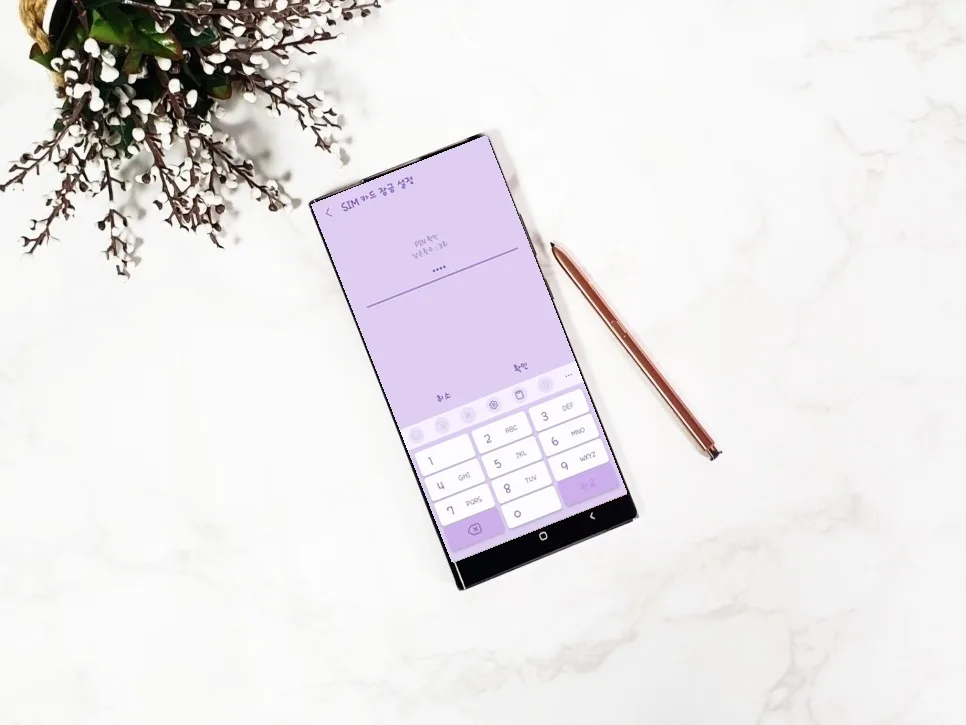
Secure your SIM card with Galaxy SIM Lock settings, a comprehensive guide for 2026. Learn how to change the default PIN from 0000 to protect your information from potential carrier data breaches.
Why You Need Galaxy SIM Lock Security
Recent data breaches have heightened concerns about personal information and SIM card theft. While specific incidents might affect one carrier, no network is entirely immune. Your SIM card (USIM) contains crucial information for your mobile service, making basic security settings essential. Galaxy smartphone users can easily activate SIM lock directly from their settings without needing extra apps. This feature acts as a first line of defense, preventing unauthorized access to your SIM card if your phone is lost or tampered with, thereby mitigating further damage.
How to Set Up Galaxy SIM Lock
Related Articles
Setting up SIM lock on your Galaxy smartphone is straightforward. Open the
Why Changing Your Galaxy SIM PIN is Crucial
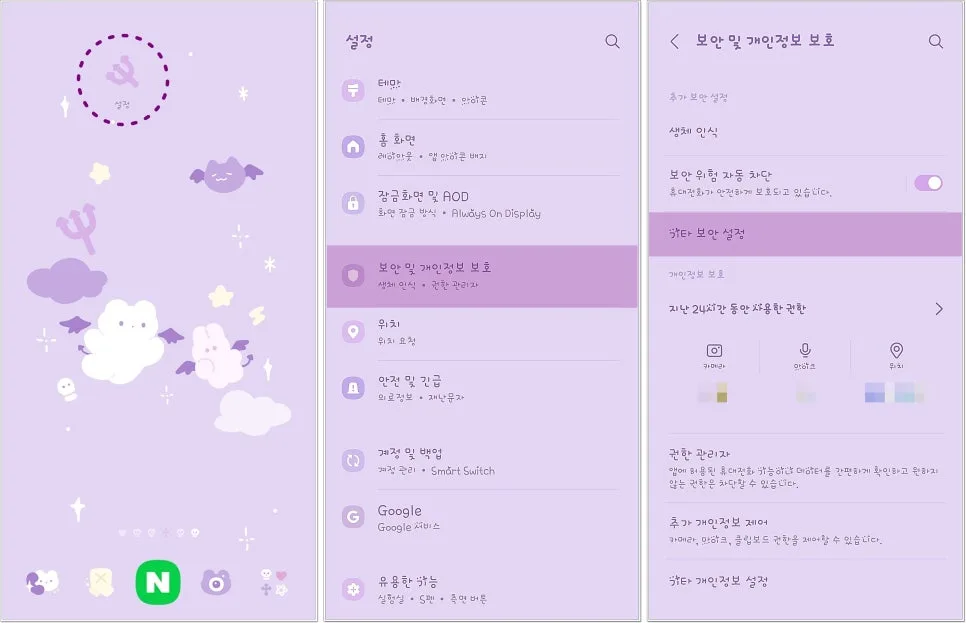
After enabling SIM lock, changing the default PIN is a mandatory next step. All Galaxy SIM cards come with a default PIN of 0000. If you leave this unchanged, your SIM lock setting becomes ineffective. Anyone attempting to access your phone or SIM information could easily bypass the lock using this common PIN. Therefore, changing it to a unique 4-digit number that only you know is vital for protecting your communication services and personal data against unexpected events like carrier data breaches. It's a critical security enhancement beyond a simple password change.
How to Change Your Galaxy SIM PIN
To change your SIM card PIN on a Galaxy device, follow these steps: Go back to the
Galaxy SIM Unlock and Important Notes
To unlock your Galaxy SIM, simply enter the correct PIN after powering on your phone. If you enter the wrong PIN three times consecutively, your SIM card will lock, requiring a PUK (PIN Unblocking Key) code. You can obtain this code by contacting your mobile carrier's customer service. It's important to keep your PUK code secure. While SIM lock helps protect the SIM card itself if your phone is lost, it's also crucial to use your phone's built-in lock features (pattern, password, fingerprint) for comprehensive security. If you forget your SIM lock PIN, contact your carrier for assistance. Regularly changing your PIN is a good practice for maintaining strong security.