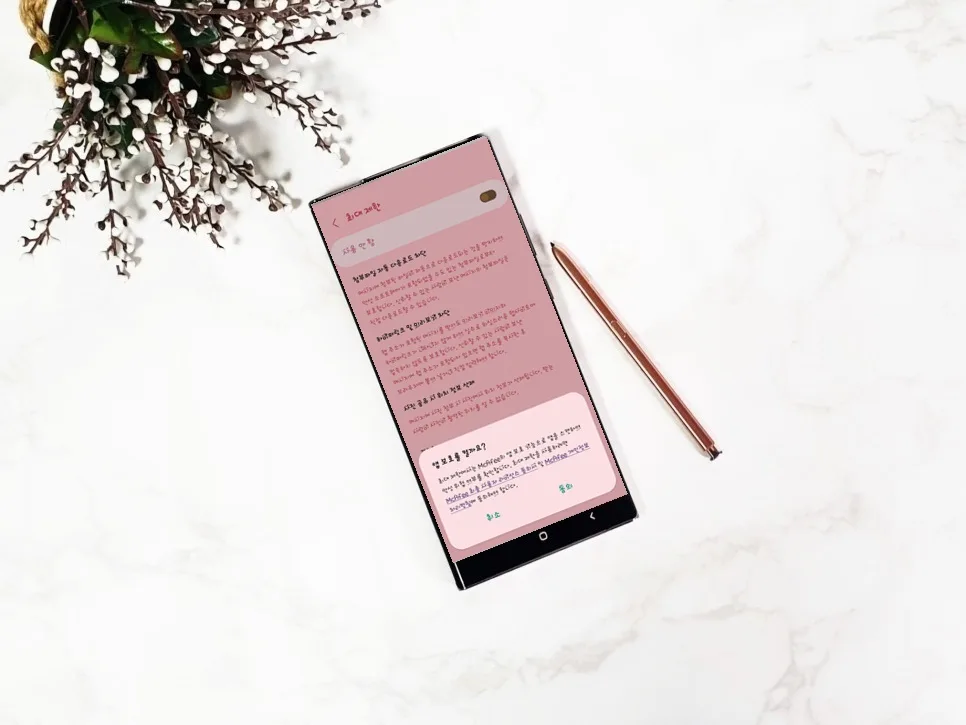
Master your Galaxy security settings in 2026 with this comprehensive guide to blocking smishing (SMS phishing) and protecting your apps. Learn to leverage Samsung's built-in features for a safer smartphone experience without needing extra downloads.
How Can I Enhance My Galaxy's Security Settings?
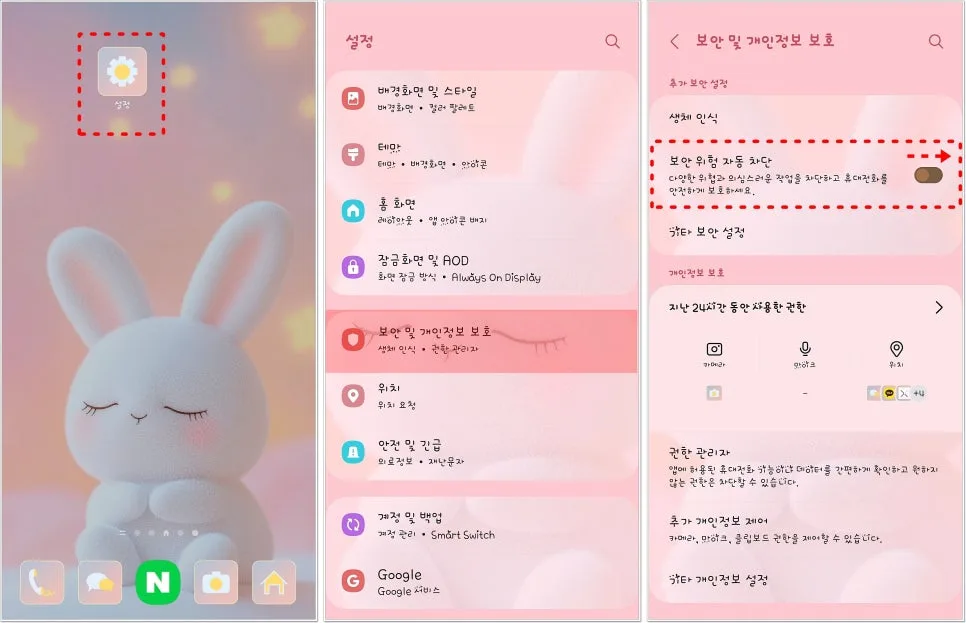
We all receive suspicious texts, and clicking links in smishing messages can lead to personal data theft or even harm your contacts. Fortunately, you can significantly boost your Galaxy's security and block spam using its native features. Navigate to your phone's Settings, then select Security and privacy. Here, you can manage various settings like your lock screen, accounts, and biometrics. Crucially, enable Security risk auto-protection. This feature prevents the installation of unverified apps and blocks malware from infecting your device via USB connections or malicious image files. For even stronger protection, activate the Maximum protection option, which disables features like automatic attachment downloads, hyperlink previews, and automatically removes location data from shared photos. These basic settings alone can substantially elevate your smartphone's security.
What's the Most Effective Way to Block Spam Texts on Galaxy?
The first step to combating annoying spam texts is using the Block phrases feature. Open your Messages app, tap the three vertical dots in the top right corner, and go to Spam and blocked messages. Select Block phrases and tap the '+' button to add keywords or phrases commonly found in spam messages. For instance, by adding terms related to specific delivery scams or fake event invitations, you can automatically filter out messages containing them. I've personally found this significantly reduces the number of spam texts I receive. Another effective method is blocking specific numbers directly. Add frequently used spam numbers to your Block/report spam list. While spammers often change numbers, this is effective against repeat offenders. You can also enable the feature to block calls from numbers with restricted caller ID, preventing unwanted calls from unknown sources.
Where Can I Find Blocked Spam Messages?
Messages automatically classified as spam are stored in the Blocked messages folder within your Messages app. It's a good practice to check this folder periodically, as important verification codes or regular messages can sometimes be misclassified. If you find a message that was incorrectly flagged, simply long-press it to select it and then tap the Restore button to move it back to your main inbox. This helps prevent you from missing crucial communications and improves the accuracy of the spam filter over time.
What Additional Security Settings Should I Consider for My Galaxy?
To further enhance your Galaxy's security, consider enabling App protection within Settings > Security and privacy > Security risk auto-protection. This function automatically detects and blocks potentially harmful apps or files. Disabling the Hyperlink and preview feature can also prevent accidental access to suspicious links by stopping previews from appearing. For enhanced privacy, turn on Remove location data from photos to automatically strip location information from your images before sharing. These settings can be adjusted based on your personal usage habits and security concerns. If you require professional advice on smartphone security, consulting Samsung's customer support or an IT security expert is recommended.
For more details, check the original source below.