Getting your KakaoBank account statement PDF and printing it is simple using the mobile app. You can also issue an account opening confirmation directly from the app, allowing you to quickly obtain necessary information without physical documents. This guide will walk you through the process for US users.
How to Easily Save Your KakaoBank Account Statement as a PDF on Mobile?
Saving your KakaoBank account statement as a PDF file is straightforward. First, open the KakaoBank mobile app and navigate to the account for which you need the statement. Tap the gear icon for 'Account Management' located in the top right corner of the account screen. On the Account Management screen, scroll down to the 'Inquiry/Download' section and select 'Account Statement.' Then, press the 'Save' button, and the statement will be saved as an image file in your gallery. You can find the saved file in the 'Kakaobank' folder. In my experience, this process takes less than a minute, making it incredibly useful when you're in a hurry.
How to Convert or Print Your Account Statement Image to PDF on Mobile?
To convert your saved account statement image to PDF or print it directly, follow these steps. In your gallery, long-press the saved account statement image and select the 'Share' button. In the share menu that appears at the bottom, choose 'More' and then find and select the 'Print' function. If you want to save it as a PDF file, select 'Save as PDF' from the print options and then tap the save button in the top right corner. You can find this converted PDF file in your 'My Files' app under the 'Download' folder. This method allows for direct document printing from your mobile device without needing any additional software.
What is the Procedure to Issue a KakaoBank Account Opening Confirmation on Mobile?
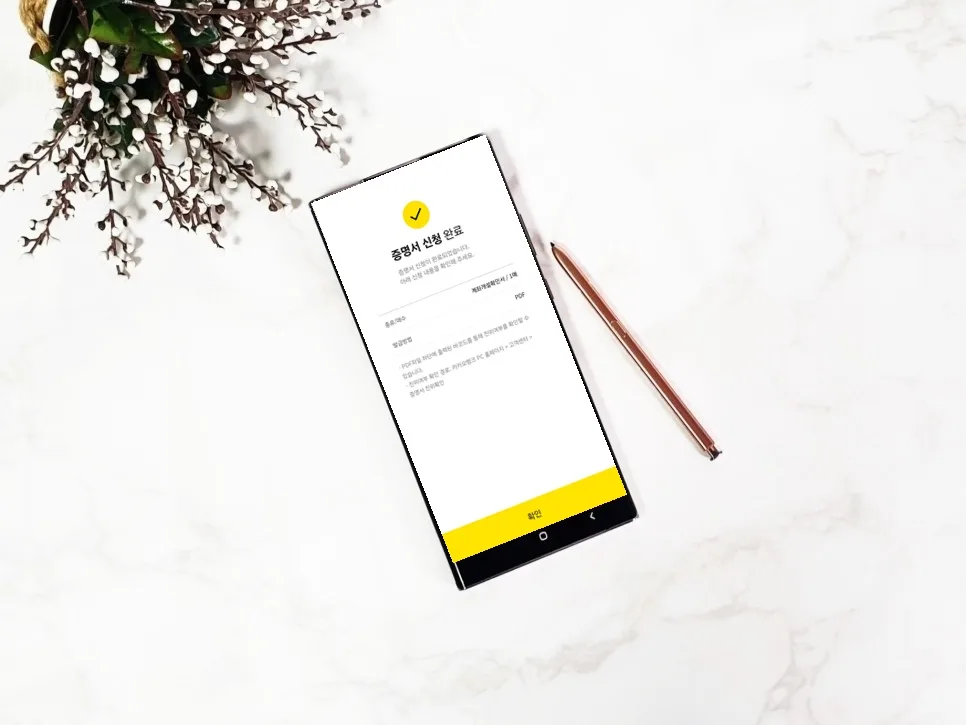
Similar to the KakaoBank account statement, the account opening confirmation, which serves a comparable purpose, can also be easily issued through the mobile app. Tap the 'All' menu at the bottom of the app, then type 'Account Opening' into the search bar at the top. From the search results, select 'Certificate Issuance' and then choose 'Account Opening Confirmation,' followed by 'Next.' In the next screen, select 'PDF' as the 'Issuance Method' and proceed. Choose the required account, tap 'Apply,' and enter your 6-digit password to complete the certificate application. On the issuance history screen, you must press the 'Download' button to save it to your desired location; only then is the issuance fully complete. This process is useful when you need proof of financial transactions.
What Should You Be Aware of When Issuing a KakaoBank Account Statement PDF?
There are a few important points to keep in mind when issuing your KakaoBank account statement PDF. Firstly, account statement images typically only contain basic account information and may not be considered valid for official financial transaction verification. If official documentation is required, it's best to obtain an account opening confirmation or transaction history statement. Secondly, since the account statements saved from the mobile app are image files, there might be a reduction in resolution or quality when converting to PDF or printing. Therefore, if high-quality output is necessary, consider using the PC version or previewing the quality using the print preview function before printing.
For more details, check the original source below.