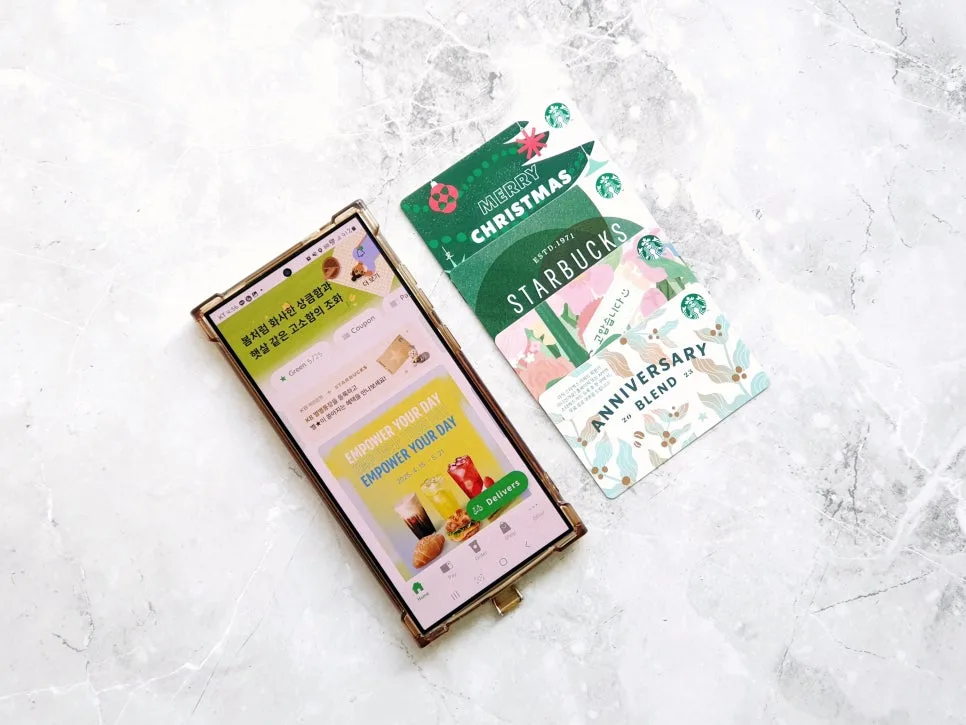
Managing your Starbucks gift card is easier than ever in 2026! Learn how to register your Starbucks card on the app, cancel it if needed, and conveniently check your balance. You can even manage physical cards without carrying them, ensuring a seamless coffee experience.
Why Register Your Starbucks Card on the App?
Starbucks gift cards are a popular and practical gift, allowing you to load funds and use them for your favorite beverages. However, losing a physical card or forgetting it at home can be a hassle. By registering your Starbucks card on the app, you eliminate these worries. You gain access to convenient features like Siren Order (mobile ordering), star accumulation for rewards, automatic tax receipts, and auto-reloading. This means you can enjoy your Starbucks fix anytime, anywhere, without needing the physical card in hand. It’s a key feature that truly enhances the Starbucks experience for busy Americans.
How to Register Your Starbucks Card Hassle-Free
Registering your Starbucks card on the app is a straightforward process. First, download the Starbucks app from your device's app store and log in or create an account. Once logged in, navigate to the 'Pay' tab at the bottom of the screen. You'll see a list of your currently registered cards. Tap the '+' button in the upper right corner to add a new card. On the card addition screen, enter the 16-digit Starbucks card number and the 8-digit Pin number found on the back of your gift card (you may need to scratch off a sticker to reveal the Pin). Tap 'Register' and your card will be added instantly, allowing you to see its balance right away.
Starbucks Card Reloading and Balance Management
You have two primary ways to reload your Starbucks card. 'General Reload' allows you to manually add funds, with minimums typically starting at $5 and maximums up to $200 per reload, depending on regional policies. 'Auto-Reload' is a set-it-and-forget-it option where your card automatically reloads when the balance drops below a certain threshold you set (e.g., $10). You can also set up recurring monthly reloads. These convenient options ensure you always have funds available for your coffee runs.
The 'My Card' section within the app also provides real-time balance checks for all your registered cards.
Canceling Your Starbucks Card and What to Do If You Lose It
If you received a Starbucks card as a gift but no longer need it, or if you simply wish to remove it from your account, you can cancel its registration. Go to the 'My Card Management' section in the app, select 'Deregister Card,' and follow the prompts, which may include entering a 6-digit verification code sent via SMS or KakaoTalk. Once deregistered, the card can be registered by another user. In the unfortunate event that you lose your physical Starbucks card, immediately go to the 'My Card Management' section in the app and tap on 'Physical Card' to deactivate it. This prevents any unauthorized use of the lost card. You can continue to use the card balance through the app, and you can toggle the ON/OFF status anytime.
Ready to manage your Starbucks card like a pro? Start today!